Termsrvdll Patch Windows Server 2022 Better Free Work | Fast & Plus
Version: 2.2.15 (2020-12-05)
Windows 32-bit or 64-bit supported
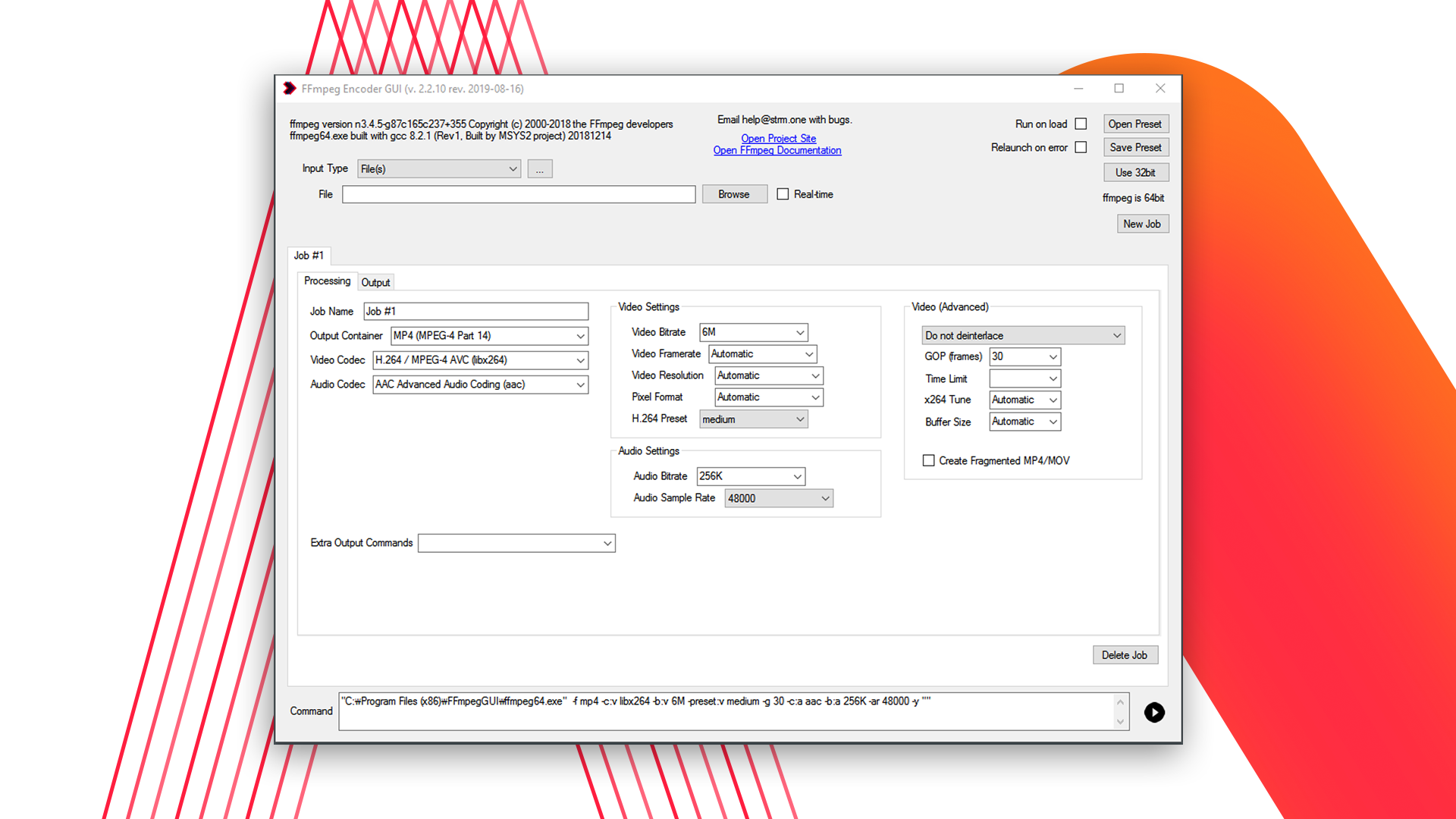
Version: 2.2.15 (2020-12-05)
Windows 32-bit or 64-bit supported
Added option to auto-relaunch if streaming/encoding pipeline stalls
Added real-time buffering checkbox to "URL" input options
Fragmented MP4 flag changed to "-movflags frag_keyframe+empty_moov" to conform to latest guidance
Added option to write FFmpeg output to weekly rotating logfile
Added menu option to save currently open preset without prompting for filename (i.e. File > Save)
Fixed minor cosmetic bug on main page
Fixed minor cosmetic bug on Encoding Status page
Fixed error with duplicate DirectShow devices
Fixed bug with non-ASCII DirectShow device names
Added textbox to provide custom input commands
Added input decoder read buffer option
Added NVENC presets list
Status display expanded with restart & kill commands
File output selection now includes filename prompt
Improved bitness checking allowing for smaller install footprint
Miscellaneous minor changes
Original release

FFmpegGUI currently supports File, DirectShow, Blackmagic Decklink, NewTek NDI or URL inputs.
Drag and drop your file(s) from your system to be processed quickly.
Prompting to rename any input file(s) with non-ASCII filenames to be compatible with command-line processor.
You can easily export your clip(s) to a file, NewTek NDI destination, RTMP server or any other custom output supported by FFmpeg.
The included FFmpeg is built with hardware encoding support for NVENC. GUI support is experimental at this time, feedback is welcome.
32-bit and 64-bit Windows binaries of FFmpeg included. Current binaries are based on version 3.4.5.
Save your encoding settings as file to be recalled later. Settings are formatted as an XML document.
GUI project is developed by ffmpeg fans and distributed for any usage. Non-free codecs in the included FFmpeg build may have further restrictions.
Secure your infrastructure. Do not download termsrv.dll patches. Instead, architect around the limitation using safe, supported tools.
For standard Windows Server 2022 releases, the target byte patterns generally follow these structures: 39 81 3C 06 00 00 0F 84 Replace with this pattern: B8 00 01 00 00 90 89 81
After applying any of the above methods, you should test that multiple concurrent RDP sessions are indeed possible. Follow these verification steps:
Various open-source PowerShell and batch scripts scan your specific build version of Windows Server 2022, locate the session restriction offset, and patch it dynamically. Always review the code of raw scripts on repository platforms before execution to verify system safety. Step 4: Restart the Remote Desktop Service
user wants a long article about "termsrvdll patch windows server 2022 free work". This appears to be about the termsrv.dll patch for enabling multiple RDP sessions on Windows Server 2022. I need to provide a comprehensive guide. To gather the necessary information, I will perform several searches. search results provide several potentially useful links. I will open them to gather more detailed information. search results provide information on termsrv.dll patching for Windows Server 2022. The user's question has high authority requirements, I should prioritize using official or well-established technical sources. The initial results include a DeepWiki page for TermsrvPatcher, a netcloud24.com page with a PowerShell script, a GitCode blog post about RDPWrap for Windows Server 2022, a Windows OS Hub page about RDP connection limits, a GitCode blog post about RDPWrap configuration, a GitCode blog post about three solutions for RDP limits, a CSDN blog post about PowerShell RDP configuration, a GitHub page for rdprrap, a DeepWiki page for RDP Wrapper technical details, and a GitCode blog post about open-source tools for RDP limits. I also have a Microsoft Learn page about RDP limitations. I will structure the article to cover the default RDP limitations on Windows Server 2022, what termsrv.dll is, the patching methods (PowerShell script, RDP Wrapper, manual patching), a step-by-step guide, troubleshooting, risks and warnings, legal and licensing considerations, and a conclusion. I will cite the relevant sources.aling with the default two-session limit of Windows Server 2022 is a common hurdle for system administrators who need multiple users to manage a server simultaneously. The termsrv.dll patch has emerged as a popular, free solution to bypass this restriction. This guide provides a detailed, step-by-step walkthrough of how to apply this patch effectively on Windows Server 2022. termsrvdll patch windows server 2022 free work
If you input incorrect hex values, the Remote Desktop Service will crash repeatedly, throwing error codes like 0x2 or 0121 on the client side, requiring a restore from the backup file. Summary Troubleshooting Checklist
A significant challenge with the termsrv.dll patch is that it is often broken by cumulative Windows Updates. When Microsoft pushes security patches or updates to Windows Server 2022, they frequently update the termsrv.dll file itself. This changes the file’s internal build number and hexadecimal offsets, requiring users to find a new, updated patch or adjust their rdpwrap.ini file configuration. Step-by-Step Methods for Concurrent Connections
The string “termsrvdll” appears to be a misspelling or corruption of the legitimate system file – the critical Remote Desktop Services library in Windows. Searching for a “termsrvdll patch” usually leads users to unofficial, third-party “hacks” or cracked DLL files that aim to bypass the two concurrent Remote Desktop (RDP) session limit in Windows Server (and sometimes Windows client OSes like Windows 10/11).
can lead to system instability, crashes, or security vulnerabilities. It may also violate Microsoft's licensing policies. Always create a system restore point or a full backup before proceeding. Option 1: Using TermsrvPatcher (Recommended) Automated scripts like the TermsrvPatcher PowerShell Script Secure your infrastructure
Incorrectly editing a binary library file can cause the Remote Desktop Service to crash continuously, resulting in a or complete loss of remote administrative access to the machine. 3. Malware Exposure
: The PowerShell script reports "Pattern not found".
takeown /f C:\Windows\System32\termsrv.dll /a icacls C:\Windows\System32\termsrv.dll /grant Administrators:F Use code with caution. Step 3: Create a Backup Copy
If you're exploring these patching options for your infrastructure, I can help you tailor your approach. Could you tell me: For standard Windows Server 2022 releases, the target
If you want, I can:
This article will explain:
Patching a core system file like termsrv.dll can introduce instability. Although the scripts described are widely used and generally safe, any modification to system files bypasses the official quality assurance and testing performed by Microsoft. A poorly applied patch could cause the Remote Desktop service to fail entirely, potentially locking you out of the server.
Before making any modifications, complete these preparatory steps to prevent system corruption: : Download a free hex editor like HxD.